How to get lyrics on YouTube when captions are missing
Follow lyrics without a caption track from the uploader. Find a matching recording with LyricLayer, then adjust its timing if needed.
For desktop Chrome and Edge. On a phone, save this page to open on your computer.
Captions and lyrics come from different places
YouTube captions belong to the video. LyricLayer searches lyric providers separately, so it can show the words even when the uploader has not added lyric subtitles.
Automatic speech captions can be useful, but they are not the same as a matching lyric recording. LyricLayer uses LRCLIB, NetEase and optional Kugou. A result depends on what those providers have available.
Add lyrics to the video
- Install LyricLayer from the store for your desktop browser, then refresh YouTube.
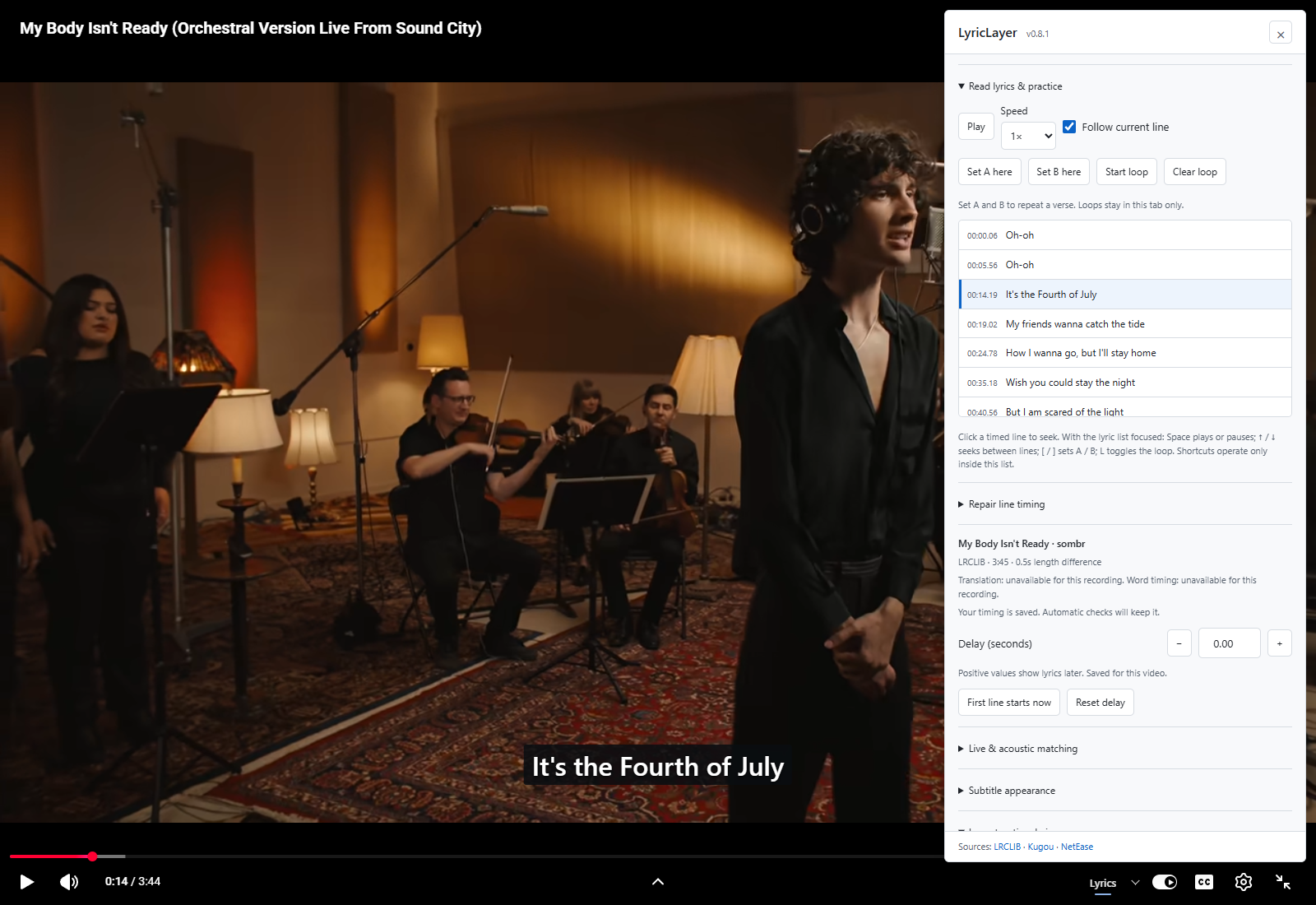
- Open a song on a regular YouTube watch page. Use Lyrics in the player to show the words.
- If a match is missing or wrong, open the lyric panel. Check the artist and song, then choose Find.
- Compare results in Choose a recording. Pick the same artist and version as the video.
LyricLayer is free. It does not require an account. See the extension and screenshots.
Check the first verse and a later chorus
Before adjusting timing, make sure the result is the right song and performance. Matching titles alone are not enough.
- Listen to the first sung lines. Compare the words on screen with what you hear. If the words differ, choose another result instead of changing the delay.
- Seek to a later chorus or verse. Check a second point well into the song. This separates a fixed offset from a recording that gradually drifts.
- Use the symptom below. If the words fit at both points, keep the recording. If they do not, fix the match or timing before trying floating lyrics or practice.
Fix the right problem
- No Lyrics button
- Check that LyricLayer is enabled and allowed on YouTube, then refresh the page. Use a regular desktop YouTube watch page. Check installation.
- The title matches, but the words do not
- In Song, use Choose a recording. Check the artist and whether the video is a studio version, live performance, cover or remix. Similar duration is a useful clue, not proof of a match.
- The right words are consistently early or late
- Open Timing and adjust Lyric delay. Positive values show lyrics later; negative values show them earlier. Recheck both points after changing it. Reset delay removes the saved offset.
- It starts aligned, then drifts further apart
- Try a different recording first. A single delay cannot fix a different tempo, arrangement or cut section. If no better match exists, the timing tools can repair individual lines or sections. Read the timing steps.
Controls depend on the installed release and browser support. The setup guide lists the versions checked on October 3, 2026; the store page shows the version currently available to you.
When no matching lyrics are available
- Replace uploader extras in the search with just the artist and song. Keep the performance version in mind when comparing the results.
- In Settings → Lyric sources, check which providers are enabled, then use Search all enabled sources. LRCLIB and NetEase are enabled by default; Kugou is optional.
- If you already have a timed LRC file for that recording, import it. Otherwise, try another video or recording with the same song.
Covers, unreleased songs and edited performances may have no suitable result. LyricLayer cannot recover lyrics that its providers do not have.
If a match seems broken, a useful report includes the YouTube URL, artist and song, selected source, browser and extension version, and two timestamps where the words differ. Send these details to support.
What the extension sends
Enabled lyric providers receive the song searches needed to find lyrics and normal connection information. LyricLayer has no publisher usage analytics or advertising. Preferences, saved lyrics and corrections stay in your browser profile.
It is an independent extension, not a YouTube product. Read the privacy policy.