How to hide Twitch channels without unfollowing
Take a break from a streamer, filter a category, and keep favourite channels visible. Your follows and subscriptions stay unchanged.
For desktop Chrome and Edge. Rules belong to this browser profile; they do not change the Twitch mobile app.
Choose the right rule
Start with what you want to stop seeing. Each rule solves a different problem.
- “I want a break from one streamer.”
- Use a channel snooze. Choose a return time; the channel comes back automatically when it expires.
- “I am not watching this category.”
- Add a category filter. It applies where Twitch exposes a matching category label and stays until you remove it.
- “Hide one streamer only in this category.”
- Use a streamer-specific category rule. Other streamers stay unaffected, and that rule stops hiding the channel when its visible category changes.
- “Keep this favourite visible.”
- A whitelist entry overrides snoozes and category rules for that streamer. A category exception is narrower: it keeps that streamer visible in one hidden category.
Example: if you hide Just Chatting but want one favourite visible there, use a category exception. Use the whitelist when you want that streamer visible regardless of your other rules.
Try a snooze and undo it
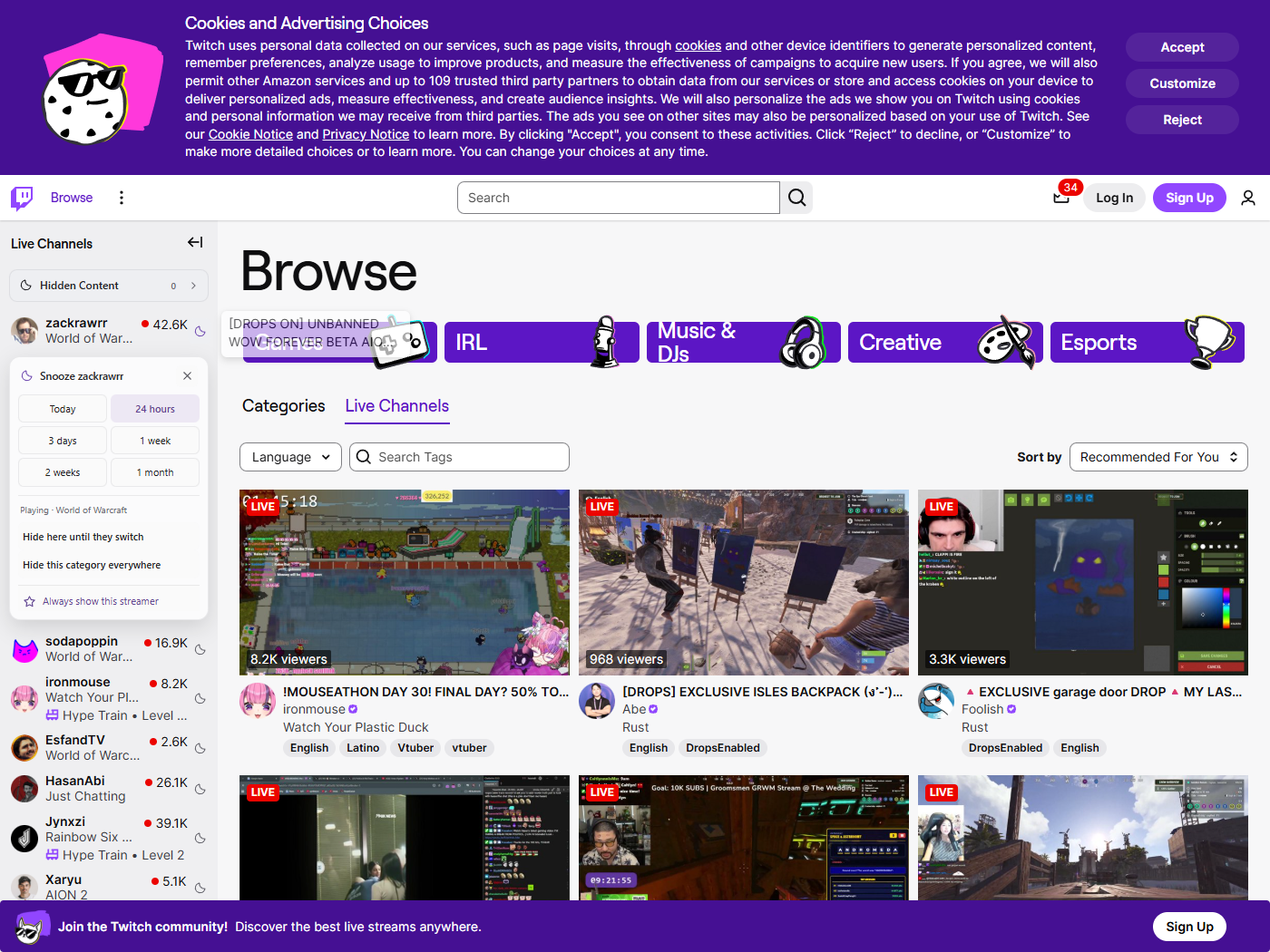
Twitch Snooze hides supported sidebar rows and stream cards in your browser. It does not unfollow the channel, cancel a subscription or block the streamer. You can still visit their channel directly, watch and use chat.
- Install Twitch Snooze for desktop Chrome or Edge, then refresh Twitch.
- Click the moon beside a channel.
- Choose Today, 24 hours, 3 days, 1 week, 2 weeks or 1 month.
Today lasts until your local midnight; 24 hours lasts a full day from when you snooze. Use Today for a short trial with a channel you are happy to hide temporarily.
- Open Hidden Content and find the saved channel rule. Check its return date.
- Restore the channel to undo the test immediately. You can also visit its channel page directly while the snooze is active.
If the channel stayed visible during your test, check whether it is whitelisted. Whitelist entries override snoozes.
Hide categories you are not watching
Open Hidden Content, choose Categories, and add the category you want to hide. The filter applies to supported cards and sidebar rows that expose that category label. It remains until you remove it.
You can also hide one streamer only while they play a particular category. When their visible category changes, that category rule no longer hides them. Unknown categories stay visible.
Keep your favourites visible
Add a streamer to the whitelist in Hidden Content. Whitelisted streamers stay visible even when a snooze or category filter would hide them. A category exception can instead keep one streamer visible in one hidden category.
This is useful when you want to hide a category in general but still watch a favourite streamer playing it.
Check why a channel is hidden or visible
Open Hidden Content → Streamers, find the channel and choose Restore. This removes the streamer’s own hide rules. If a global category filter still hides them, Restore makes an exception for that streamer in the category. The extension’s toolbar popup also opens the manager.
I restored a channel, but it disappeared again later
Check whether the channel changed category. A category exception applies to one category; another saved rule may apply elsewhere. Review Categories and the streamer’s saved rules, or whitelist the streamer to keep them visible across categories.
A snoozed channel is still visible
Check the whitelist and whether the snooze has expired. Direct channel pages stay available by design; snoozes hide supported cards and sidebar rows.
A hidden category still appears in the sidebar
The extension needs a visible category label. Unknown categories stay visible. Expand the sidebar row or load a matching visible stream card, and check that you selected the intended category.
A streamer is missing from Hidden Content
The manager shows saved rules and category matches currently loaded in open Twitch tabs. It does not scan every streamer on Twitch. Also check that you are in the browser profile where you created the rule.
Where the filters work
Rules are stored in this browser profile and apply across open Twitch tabs. They survive browser restarts, but do not sync to another device.
Category filtering uses the labels Twitch makes visible. A collapsed sidebar may need an expanded row or a matching visible card to identify the category. Direct channel pages, playback and chat stay available.
Twitch Snooze is free and open source. It has no usage analytics, tracking server or external API calls. Read the full setup guide or browse the source.